Case study · University teaching
University AI Teaching Workspace
Publish course tasks, grade submissions, and follow class progress in one workspace
What this system does
The University AI Teaching Workspace serves instructors, students, and teaching assistants in a single course. It connects prepare-and-publish → study-and-submit → grade → review-and-follow-up into one teaching loop. Materials, tasks, submissions, and scores stay inside the same course—without stitching work across separate entry points.
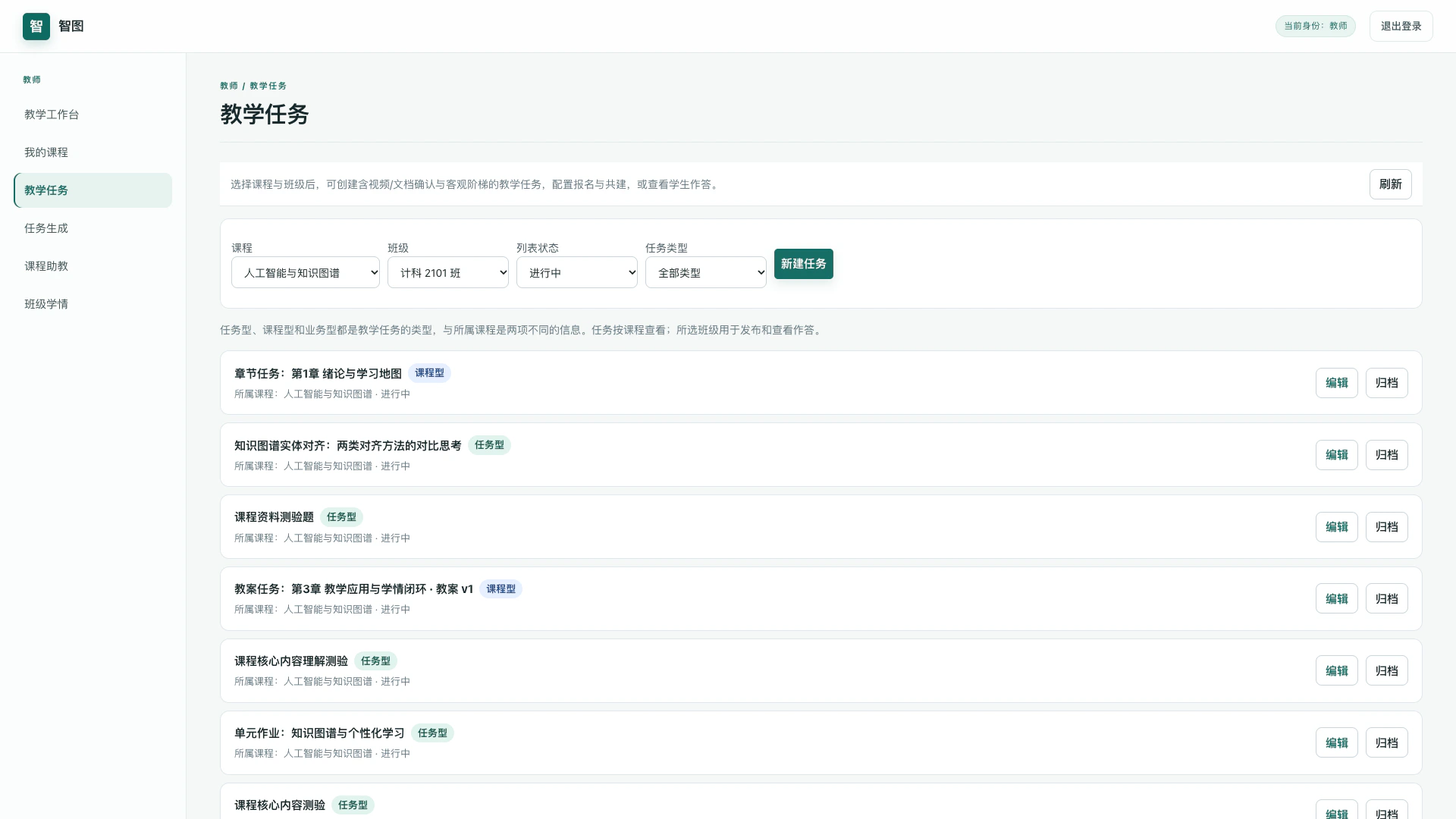
- 01 PublishInstructors organize materials, design learning paths, and publish tasks to a class. AI can draft tasks that include open-ended questions; instructors review before publishing.
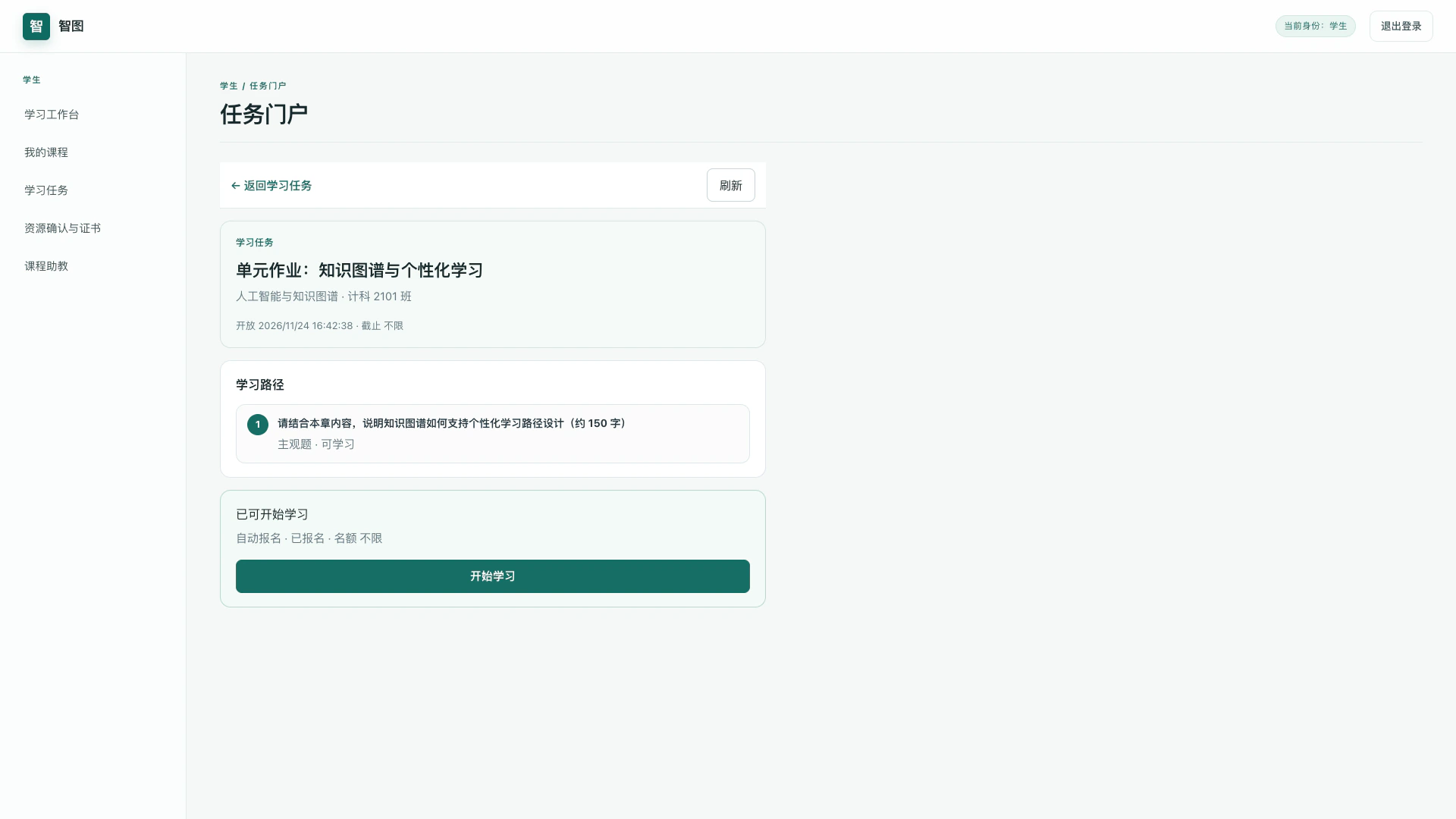
- 02 SubmitStudents open the task portal, complete path nodes, and submit their own answers. Questions can go to course Q&A grounded in course materials—no answering or submitting on the student’s behalf.
- 03 GradeTeaching assistants score open-ended answers and record reasons; instructors review the same submission and confirm or adjust the score.
- 04 ProgressInstructors revisit task progress and submissions by class to see who needs follow-up.
A course knowledge graph links chapter knowledge points with tasks. When preparing or writing exercises, instructors can check which knowledge point a practice item targets and where coverage is thin—so practice stays aligned with teaching goals.
Application scenario
Example: a university course on AI and knowledge graphs
After teaching the knowledge-graph chapter, the instructor places lecture notes and an open-ended question into the class homework, asking students to explain how a knowledge graph can support personalized learning. After grading, the instructor can compare answers with class completion to decide what is worth revisiting in the next session.
Roles that work together
- Instructor
- Publish class tasks, review scores, and check class progress.
- Student
- Enter tasks published to the class, study, and submit answers.
- Teaching assistant
- Grade open-ended answers and record scores with reasons.
- Program lead
- View authorized courses and knowledge graphs.
- Org admin
- View user roles, courses and classes, and audit records.
One course: from publishing a task to reviewing progress
Within the same course, instructors, students, and teaching assistants each complete their step. Tasks, submissions, and grading records remain available for follow-up.
Instructor
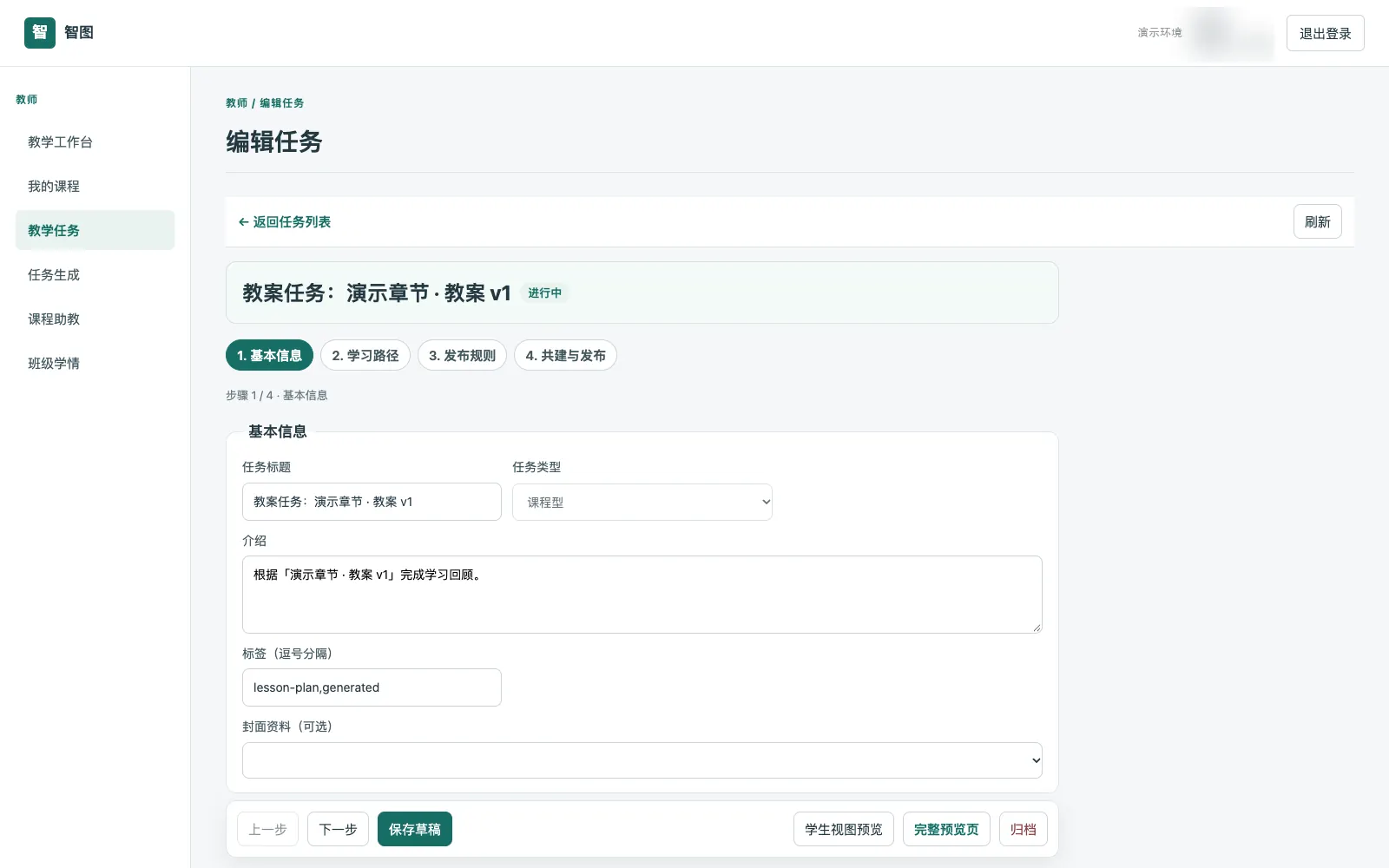
1. Edit and publish a task
Instructors fill in task details, arrange the learning path, set publishing rules, and release the task to the class. When drafting questions, they can use a prompt so AI drafts a task that includes open-ended items, then review and revise before publishing. Batch drafts from chapters or lesson plans are a separate template capability and never auto-publish.
- 01Four-step editor: basics → learning path → publishing rules → co-authoring & publish
- 02Task nodes may include video/document confirmation, quizzes, and open-ended questions
- 03AI drafts and template batch generation use separate entry points; preview the student view before publish
- 04Takes effect by class; drafts are never pushed to students automatically
Student
2. Enter the task and submit work
Students open the class task portal, review the learning path, start the task, and submit their own answers. Only tasks published to their class are available.
Questions can open a separate AI course Q&A: answers are organized from retrieved course materials, and citations can be checked when present. Q&A does not answer or submit for the student.
- 01Task portal shows open window, learning path, and enrollment status
- 02Complete path nodes and submit open-ended answers
- 03Course Q&A supports checking citations; states gaps when evidence is missing
- 04Q&A does not answer or submit on the student’s behalf
Teaching assistant · Instructor
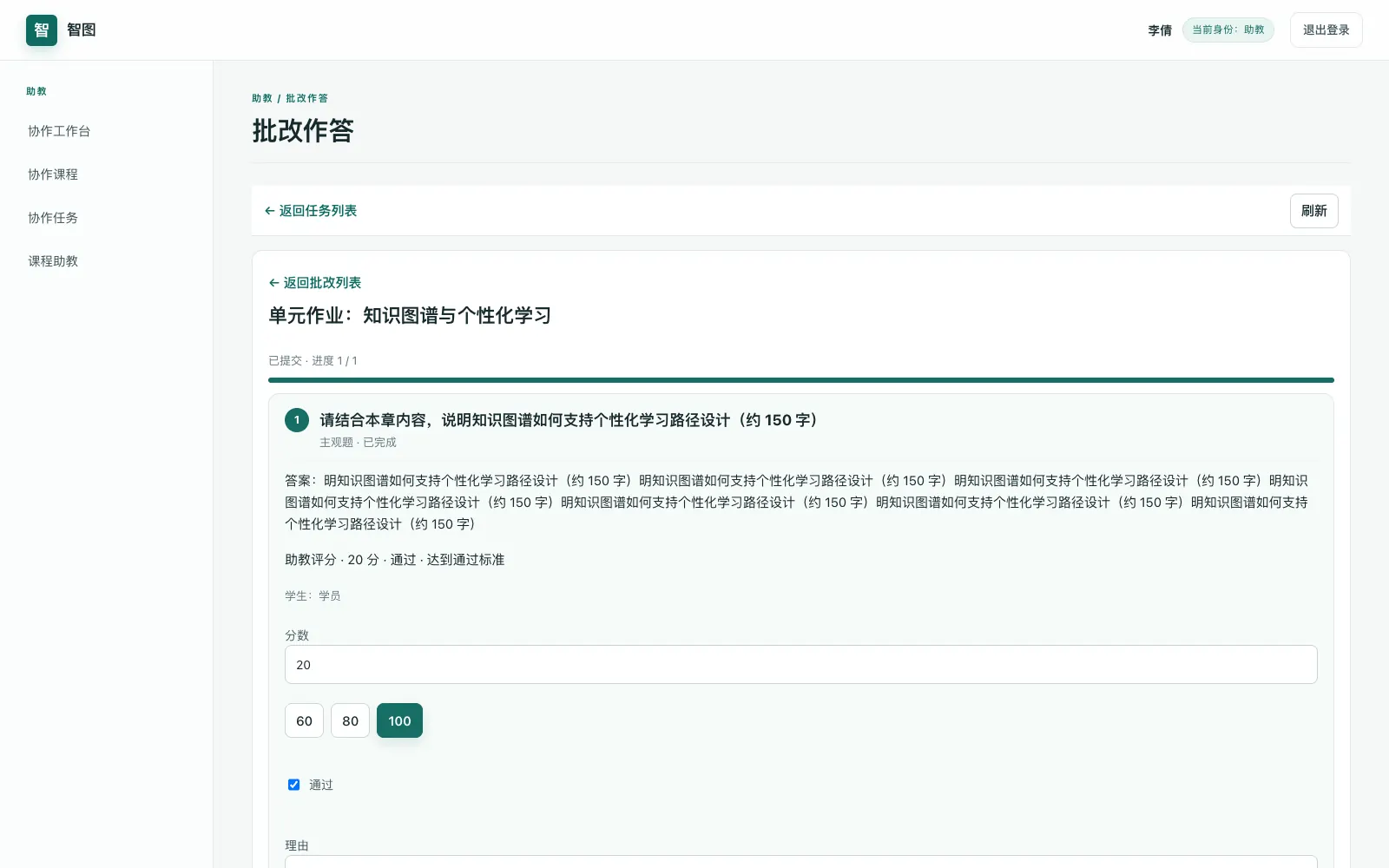
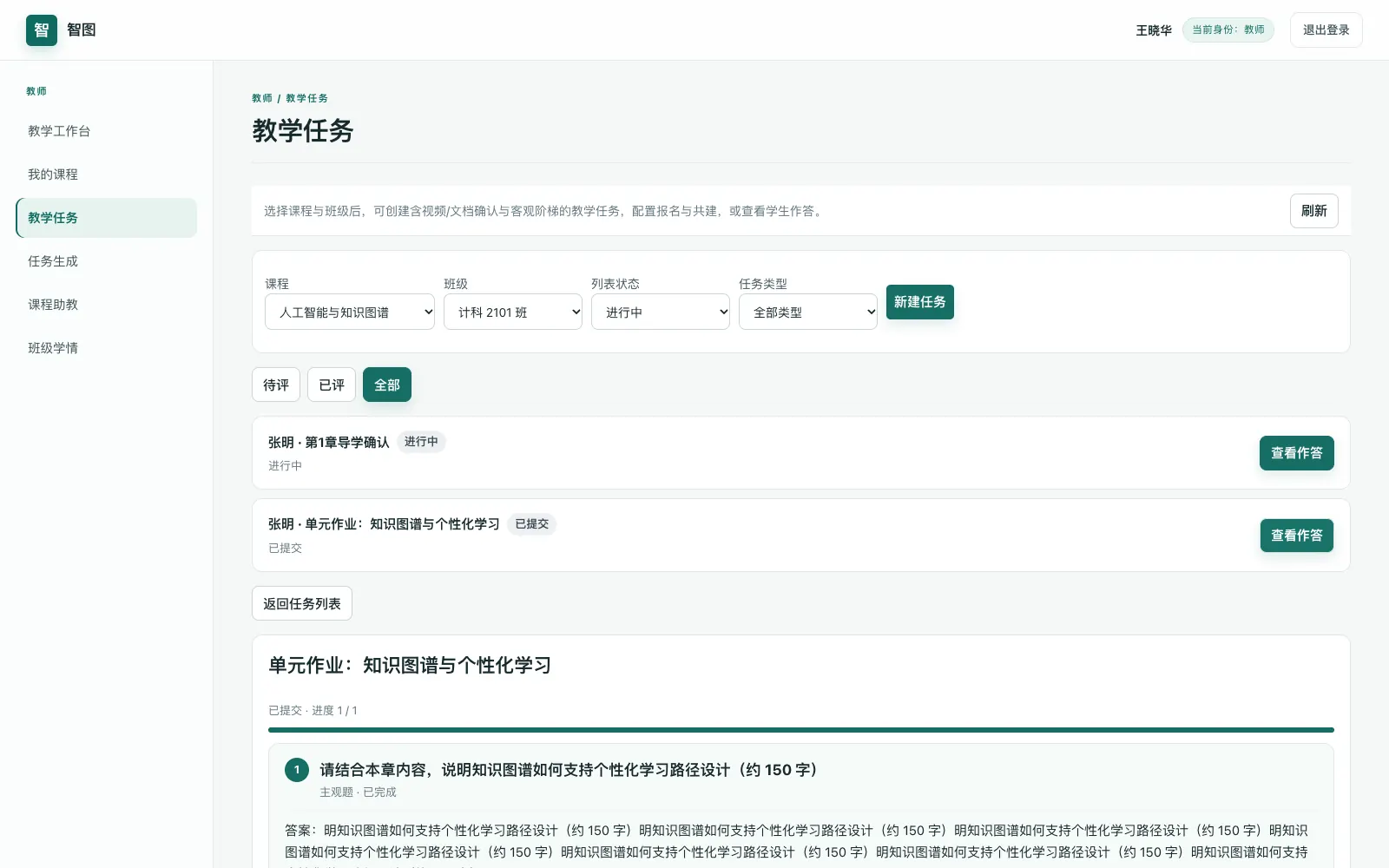
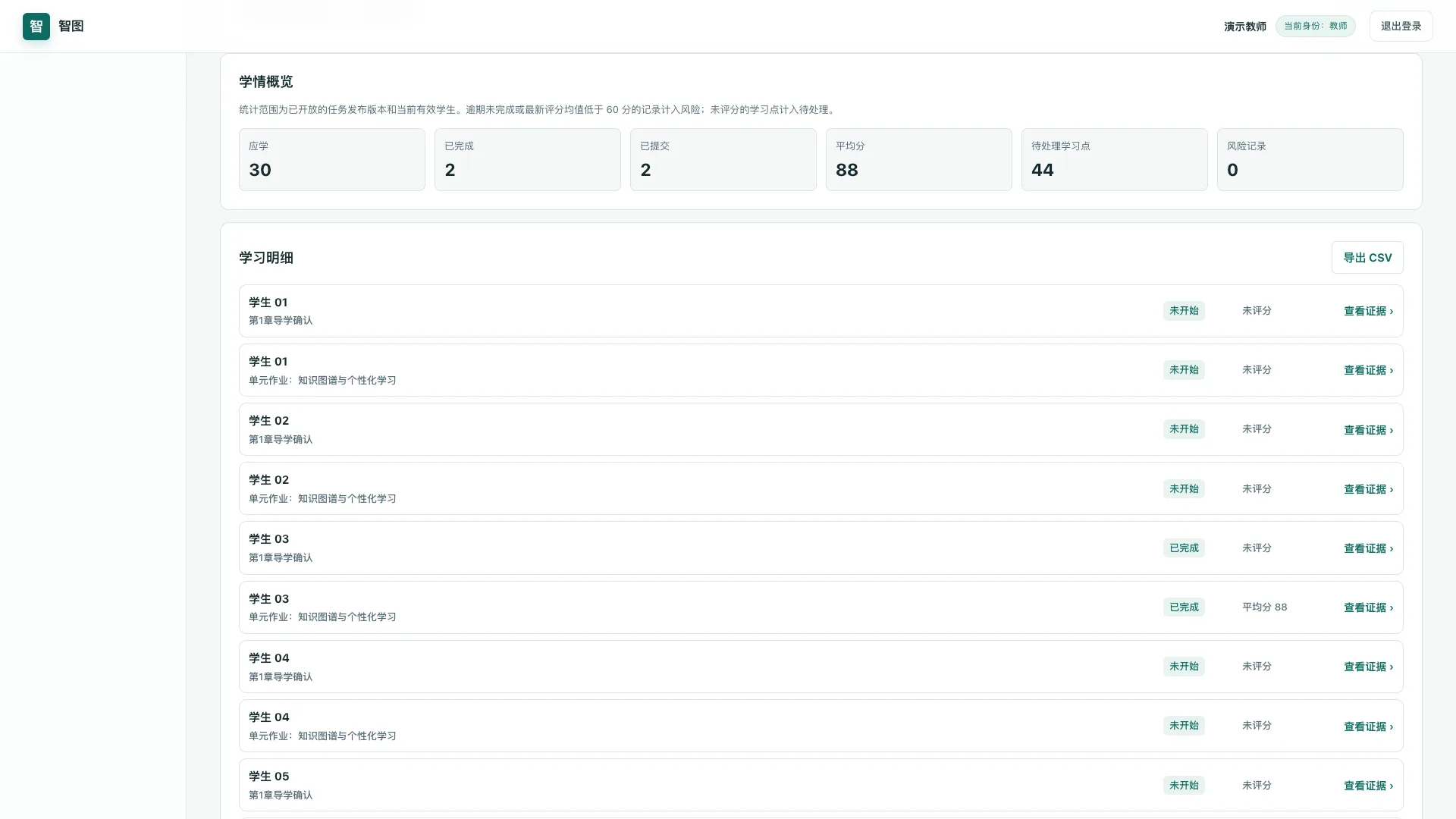
3. Score, review, and class progress
Teaching assistants grade open-ended answers and record reasons. Instructors review the same submission and confirm or adjust the score. Instructors can also view task completion by class to see who needs follow-up.
Align knowledge points and tasks with a course knowledge graph
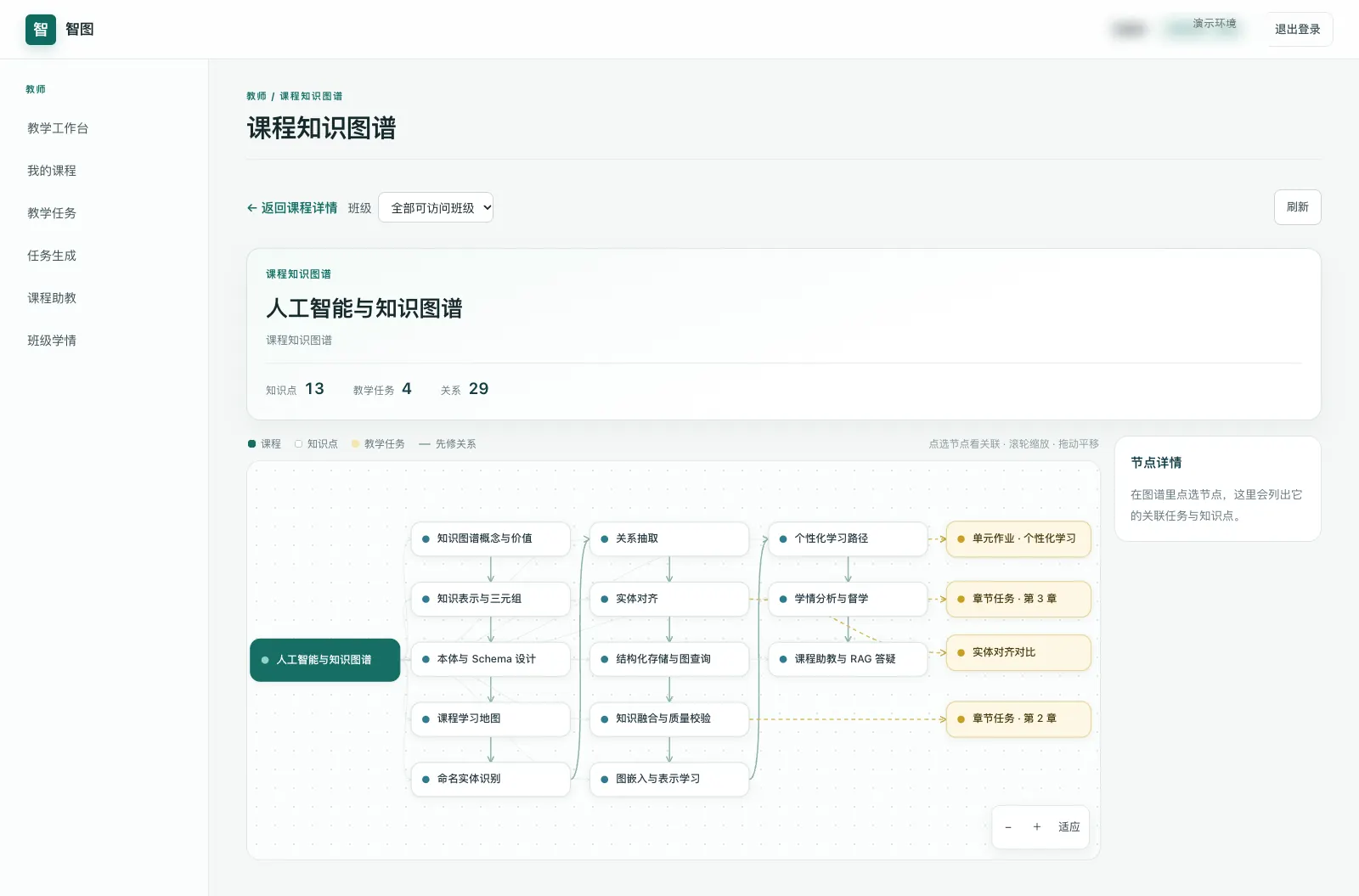
The graph is not a separate decorative page. It is a reference view while preparing and writing exercises: which knowledge points sit in a chapter, how they connect, and which tasks hang on each. Instructors can see whether practice covers the intended points and fill gaps so tasks stay aligned with teaching goals.
Additional capabilities
Beyond publishing and grading, the platform also supports AI drafting and course Q&A, materials management, and completion certificates.
AI task drafts and course Q&A
Task drafts: Instructors can enter a prompt, or generate a draft with open-ended questions from a chapter and lesson plan. They review and edit stems and scoring criteria before deciding whether to publish to the class. Generating a draft does not publish it.
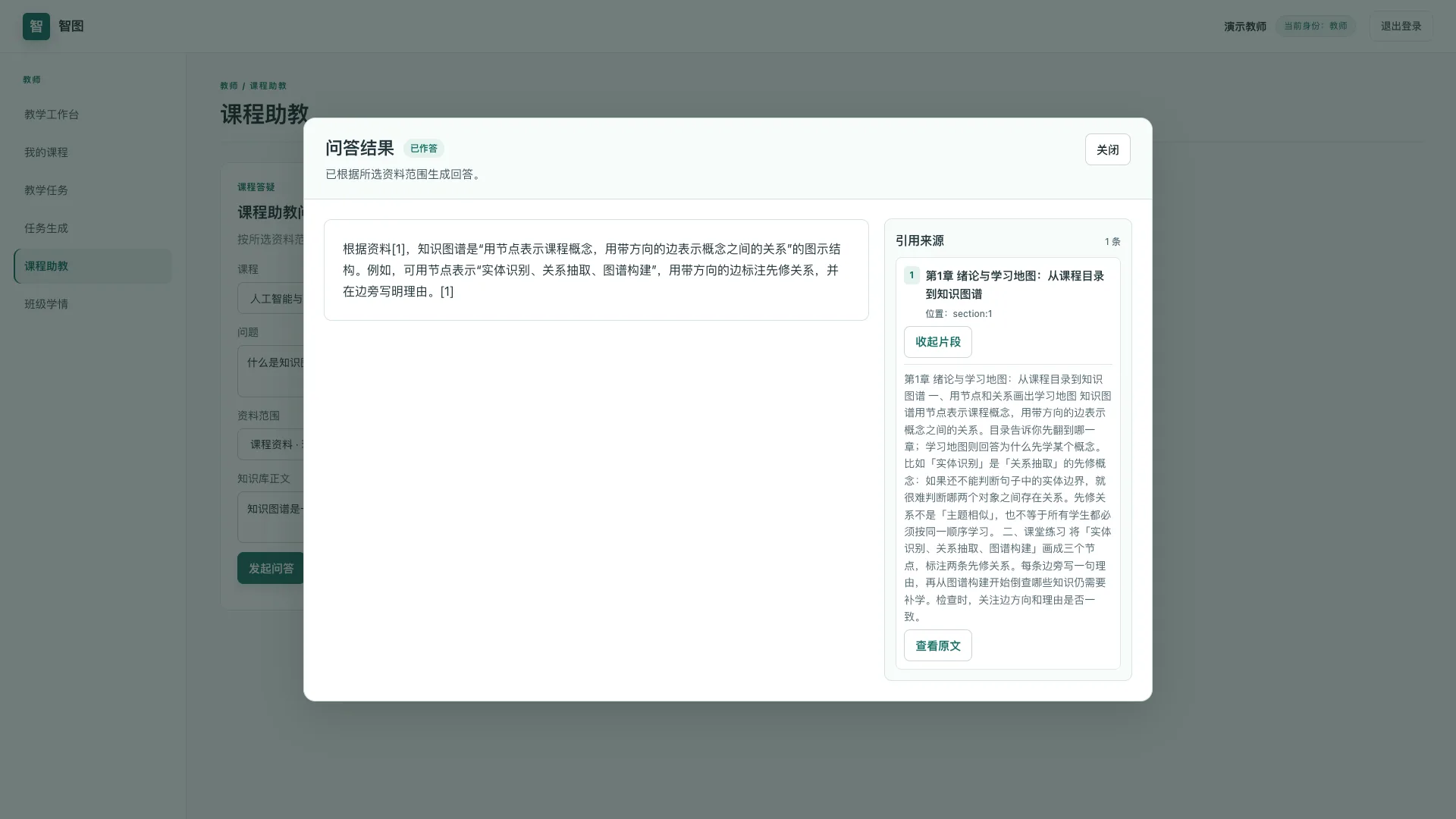
Course Q&A: Students and teaching assistants can ask about the current course and, when citations are present, open the matching materials. AI does not answer or submit for the student, and it does not grade.
Course Q&A example
After a student asks about the current course, the system organizes an answer from retrieved materials. When citations exist, readers can return to the matching passages instead of relying on vague replies.
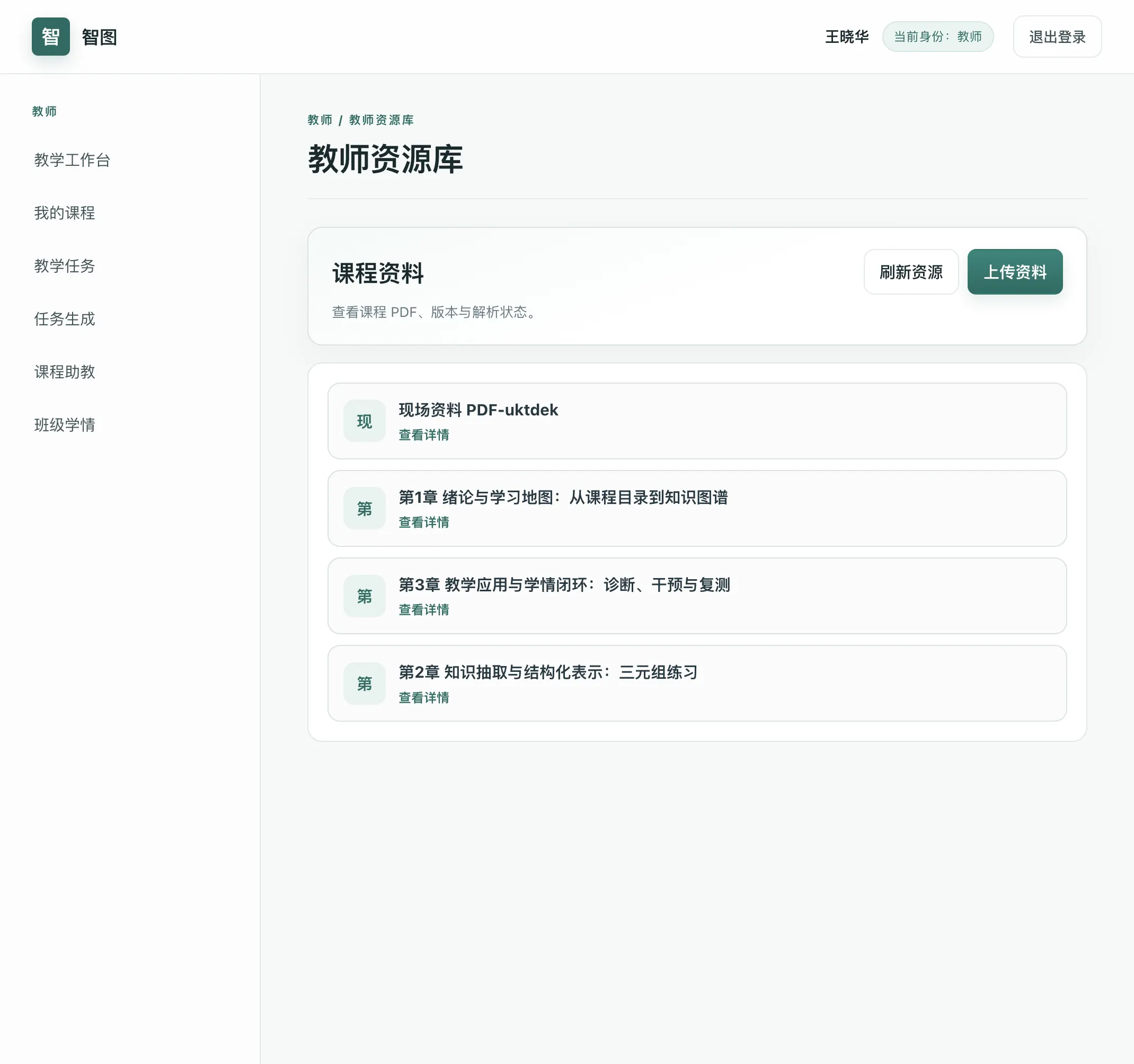
Course resource library
Instructors can upload lecture notes and chapter materials, and review versions and parsing status. Materials can be arranged into tasks; parsed content can also be retrieved and cited in course Q&A.
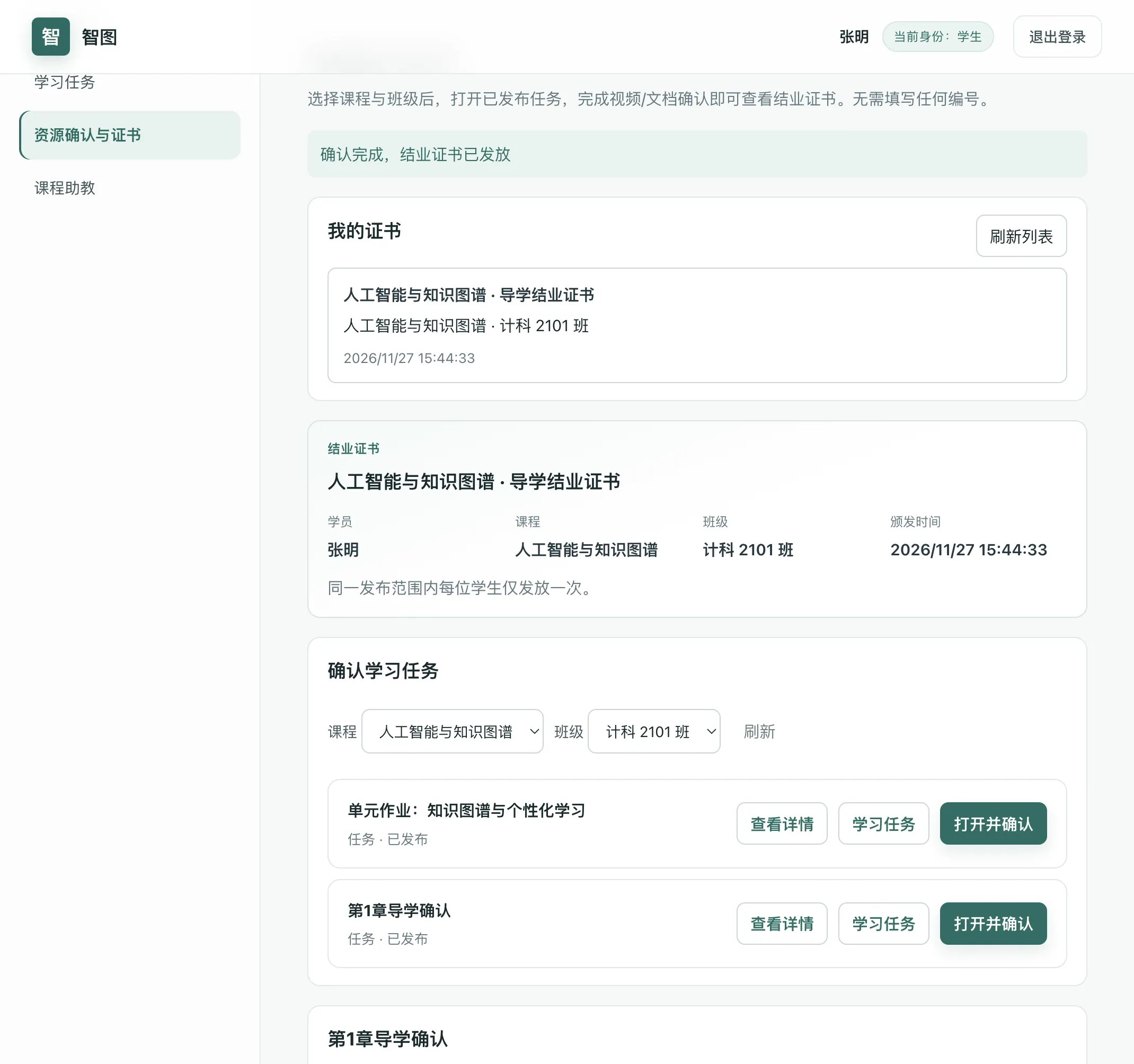
Completion certificate
After a student confirms the required video or document learning, the system issues a certificate under the instructor’s completion rules. The certificate shows name, course, class, and issuance time.
Scenario × capability
Clients do not need a technology stack first. The table maps what this system can clearly cover today. It does not include course-migration volume commitments or operations SLAs.
| Teaching scenario | Capability | Note |
|---|---|---|
| Program & course building | Course knowledge graph | Link knowledge-point relations to tasks so practice aligns with teaching goals |
| Day-to-day teaching | Four-step task editing & class publish | Details, path, rules, co-authoring; preview the student view |
| Student learning | Task portal, path submission, certificate | Only published tasks; certificate after required confirmation |
| Grading & progress | TA scoring, instructor review, progress revisit | Human scoring; AI does not grade; progress by class |
| Materials & Q&A | Resource library, AI drafts & course Q&A | Materials can be retrieved and cited; Q&A does not answer or submit for the student |
Solution design and development
TSAF contributed to solution design and development for the teaching workspace: connecting task publish, student submission, TA grading, and instructor review through a sample course, and placing the resource library, AI drafts, course Q&A, and knowledge graph in the matching steps.
Bring a task. Let’s define the collaboration.
Start with one course and one teaching step you want to improve. We align on the task first, then on the system.
- Define the task
Identify who you serve, the problem, and which teaching step you want to improve.
- Agree on responsibilities and deliverables
Consider existing content and systems, then define what needs development, adaptation, or joint work.
- Plan demonstrations and verification
Use key workflows and feature demonstrations to agree on expectations and how the project will be verified.
Note: This page presents solution design and development outcomes. Screenshots are from a live demo environment; course, class, and name values are demonstration examples. Product UI labels in the screenshots remain in Chinese—captions describe what to look for. Where a university is mentioned, the placeholder “XXX University of Science and Technology · School of Artificial Intelligence” is used. Actual scope and service commitments follow the parties’ agreement.
Back to cases